
FAQ / Moonsift Pro / How to generate a video from your Moonsift collection
How to generate a video from your Moonsift collection
This new Moonsift Pro feature enables you to generate a short video showcasing the first 10 items in a collection. You can then download and share this to Instagram as Story, Reel or Post - or to any other social media platforms.
Example of a video being used as a Reel (by @Stylemejilly)
How to generate the video
Visit Moonsift.com on your mobile (you can generate videos from any device, but to make it easier to share to Instagram it's best to generate it on your mobile)
Go to the collection you want to generate a video of
Only the first 10 products will feature in the video, so click the 'Organise' button to set the order you want for the video
Click the 'Share' button and a window will pop up with 'Generate collection video' at the bottom. Click this and Moonsift will begin generating your video.
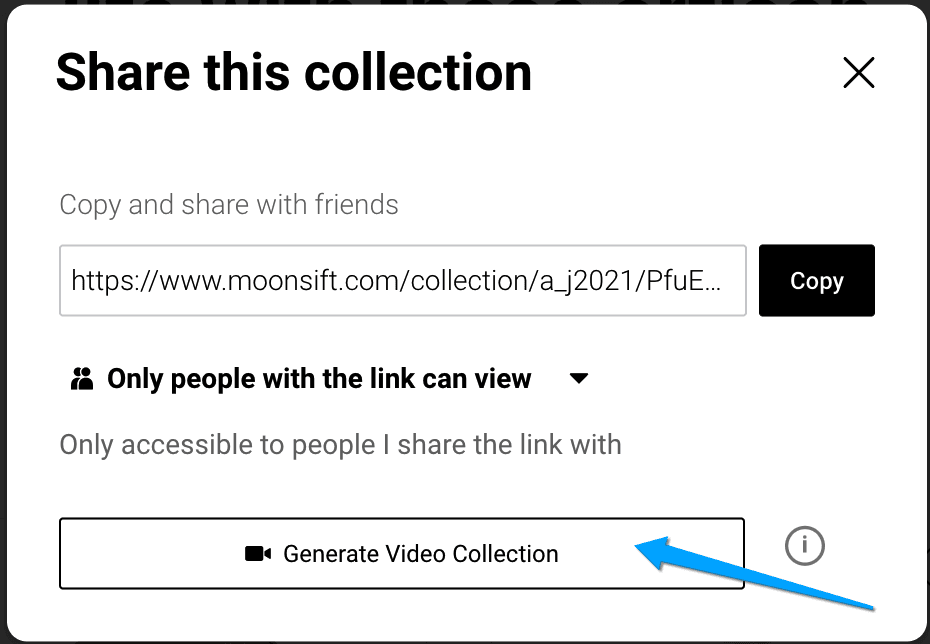
Once the video has been generated you will see a ‘Download’ button. Click this and then follow the next set of steps below on how to get the video from your downloads to Instagram.
How to get your video to Instagram on iPhone
Once your video has been generated click the 'Download' button
A prompt will show 'do you want to download video_name.mp4'. Press Download.
Now click the little blue downward pointing arrow in the top right corner of safari to open your downloads manager.
Click the magnifying glass next to the file and this will take you to your downloads. Locate the file in your downloads folder and click on it.
From this preview of the video, click the little blue upwards pointing arrow in the bottom left corner.
Now scroll down and click 'Save Video', this will save the video to your photos so you can access it from Instagram. If you would like to edit the video, you can now go to the Photos app on your phone and do so.
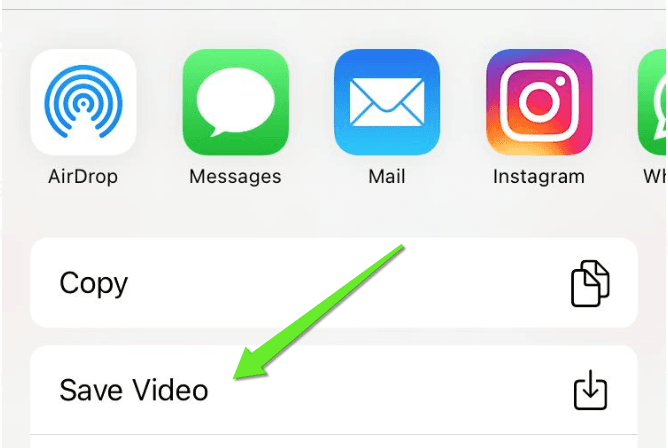
Go to Instagram or any other social or messaging platforms and you will now be able to upload the video from your photos. On Instagram you can add it as a Post, Story or Reel.
How to get your video to Instagram on Android
Once your video has been generated click the 'Download' button
A pop-up should appear at the bottom of your screen, click 'Open'
You can now either click the share icon in the top right corner of the screen or go straight to Instagram or other social media and add the video from your Gallery.
Note that images of some ASOS products may not upload to videos. We are working to fix this.
Can’t find the question you’re looking for? Send us an email at hello@moonsift.com