
FAQ / Getting Started / How to save items to Moonsift on desktop?
How to save items to Moonsift on desktop
Moonsift makes it easy to save items to your wishlist from any website.
There are 3 ways to save on desktop:
Save from any website by clicking the Moonsift icon in your toolbar,
Save via the 'quick-save' buttons on thousands of popular stores (as in the video below),
Save by pasting a product link or manually uploading the info in your wishlist.
Read on to learn more.
Save directly from any website via your toolbar
To add items directly from any site, get Moonsift's free browser extension and pin it to your toolbar.
Moonsift's browser extension has hundreds of 5 star reviews and is a key reason so many people fall in love with Moonsift - it's just so convenient!
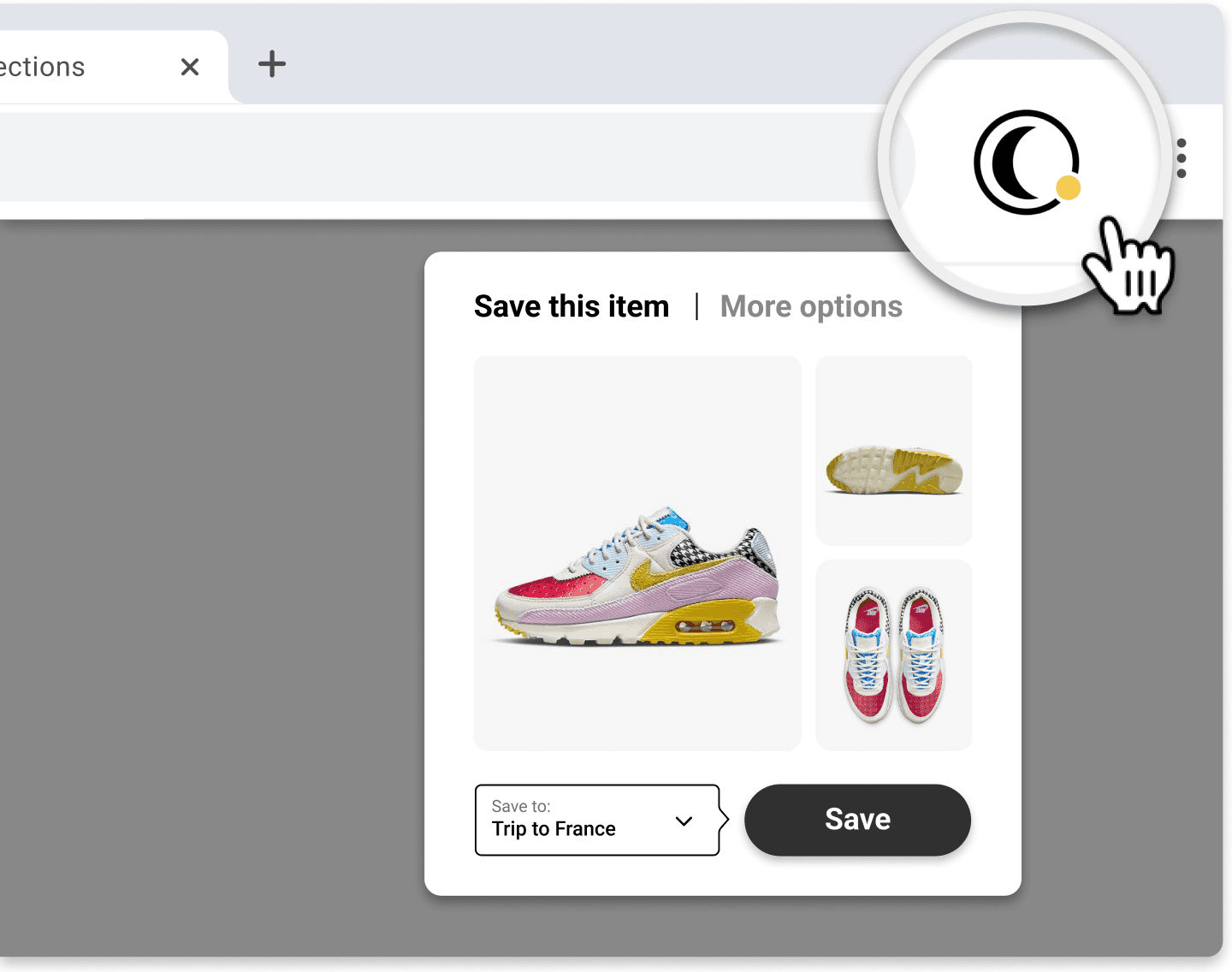
No matter what website you're browsing, with the extension you can click the Moonsift icon in your browser’s toolbar to save the item.
Go to the product page you want to save (on any online store)
Click Moonsift’s logo in your toolbar
Save to one or more Collections
You will be able to select which images of the item you want and edit the price and description if needed before you save. You can also add notes to the item after saving it.
If you've added the Moonsift extension but cannot see the Moonsift icon in your toolbar, click here.
Use 'quick-save' buttons on 1,000s of popular stores
To make things even easier, once you have the extension you will see quick save buttons on many of the world's most popular retailers. These allow for an easy 1-click save.
Top tip: if you visit a store that doesn't already have quick save buttons, you can request them.
Hover and save - when browsing lots of items on a page
When browsing pages with lots of products, hover over the image of any item you want to save. This will bring a save button up in the top right hand corner of the image.
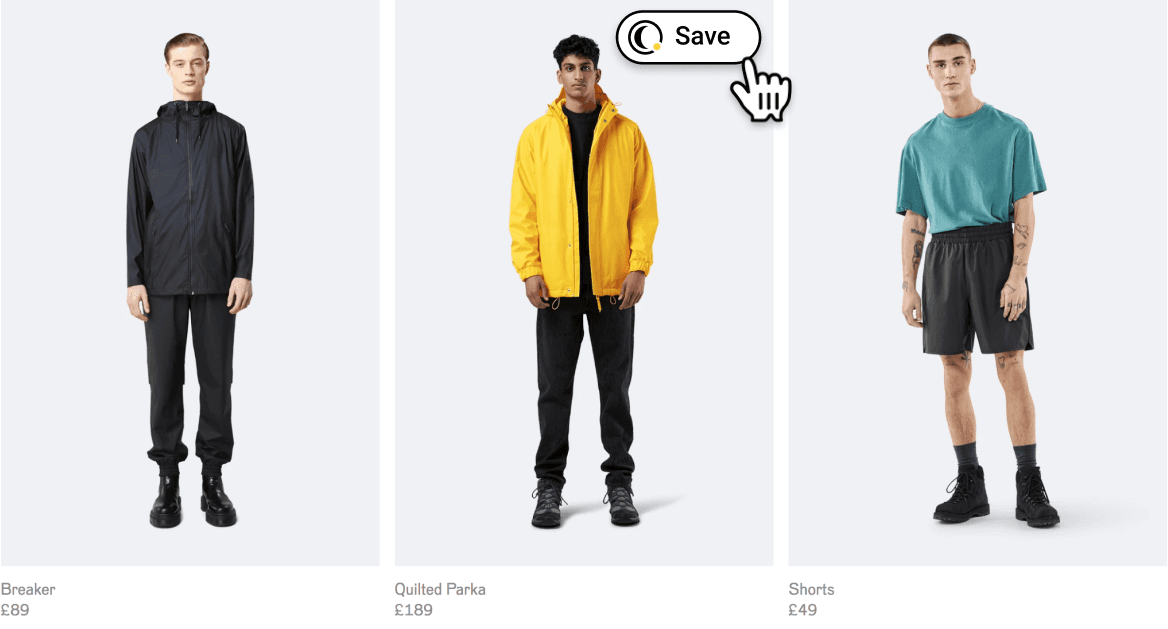
On slower websites it can sometimes take a second for the save buttons to load.
Save from the right hand side - when viewing a single item
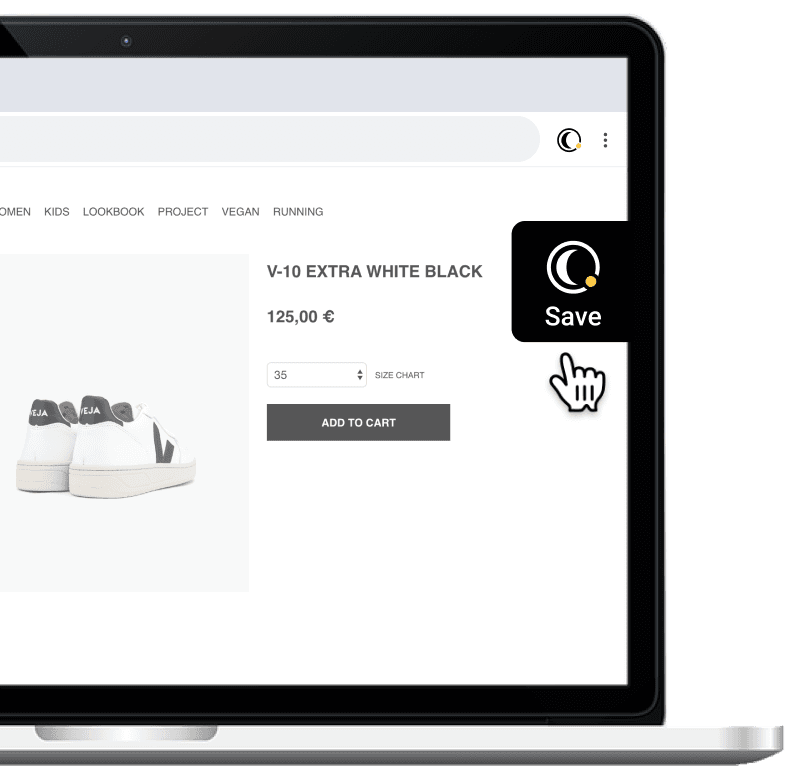
When you're viewing a specific product page, use the black save button on the right hand side of your screen to save.
Add items from a link or manually
You can also add items by clicking the the 'Add item' button in your wishlist.
This is a bit less efficient than the two options above, but useful if you use a browser that does not support Moonsift's extension (e.g. Safari or Firefox).
Click the 'Add items' button in the wishlist you want to add the item to two options:
Generate the item by pasting a link
Go to any website and find a product you want to add,
Copy the page URL of that product,
Click 'Add item' in your wishlist and paste the URL in the field provided.
Add item manually
Click 'Add item' in your wishlist and then select 'Manually'
Add info about the item you want
Include an image if you like (if adding an image using a link, make sure it is an image URL, not a page link)
Contact us if you ever have issues
If you ever have problems saving an item, please report it or email support@moonsift.com. We work round the clock to ensure Moonsift works smoothly with every retailer.
Can’t find the question you’re looking for? Send us an email at hello@moonsift.com