
FAQ / Collections / How to choose which product image is displays in your collection
How to choose which product image displays in your collection
To choose which image of an item displays in your Moonsift wishlist:
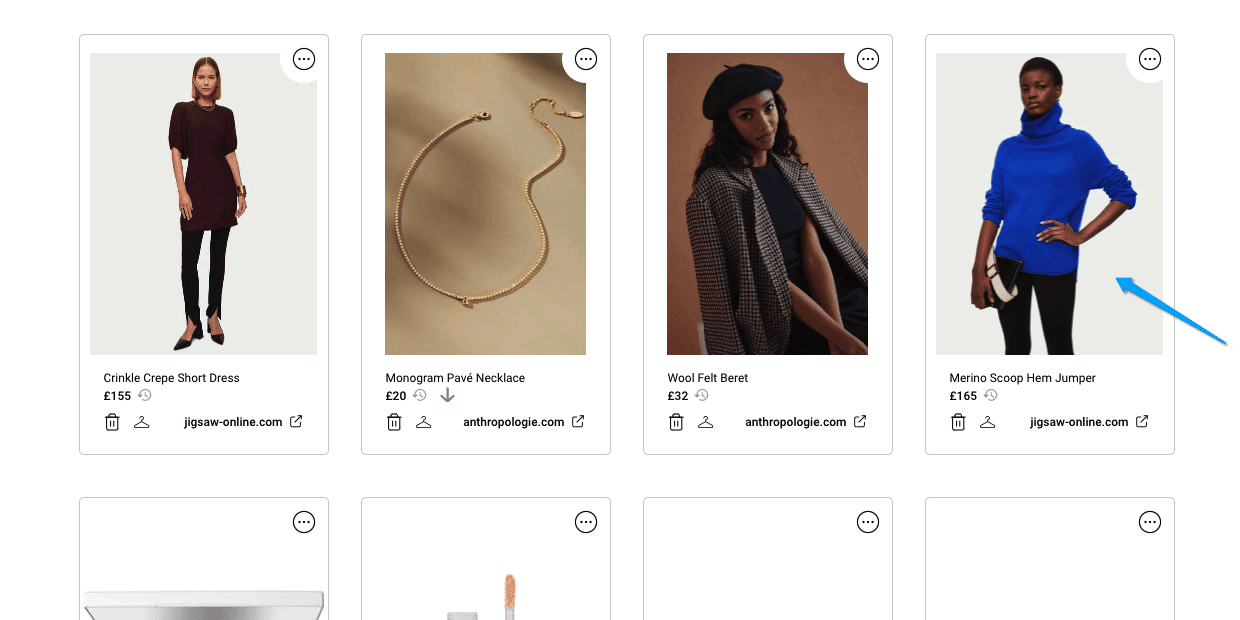
Click on the relevant product image in your collection.
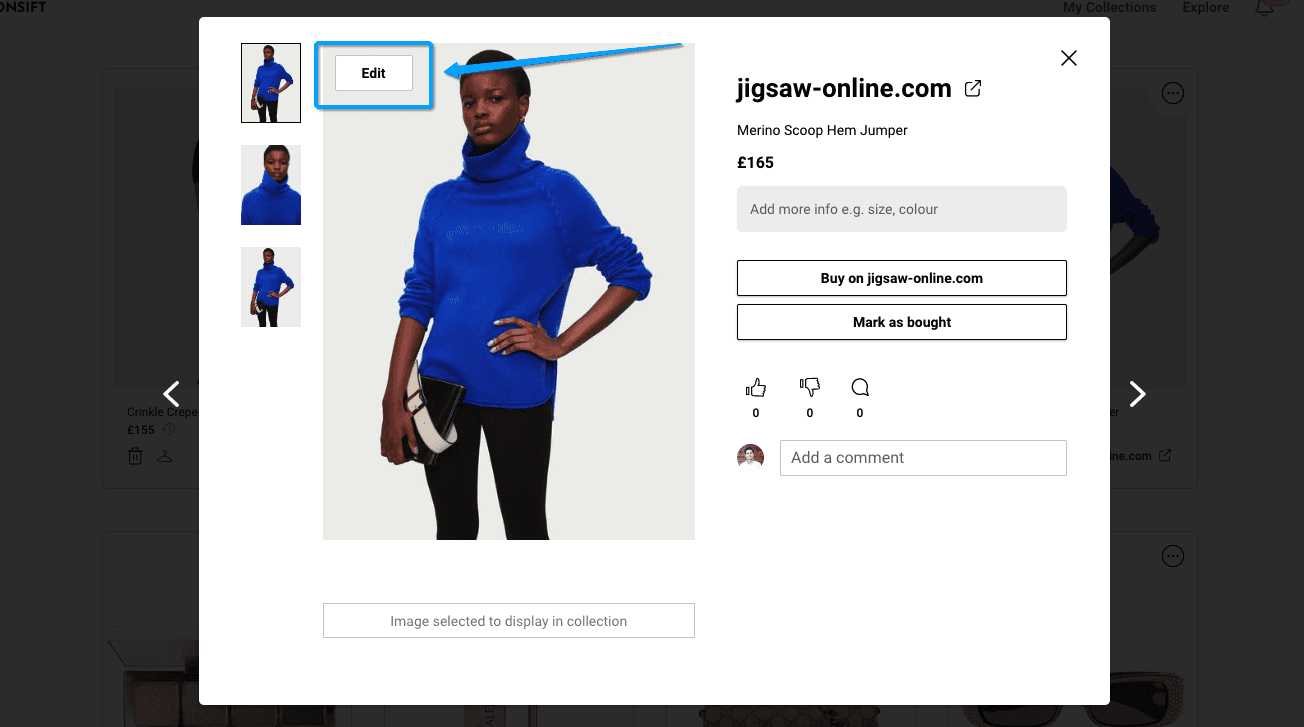
2. In the popup that opens, click the 'Edit' button you will see in the top left corner of the image.
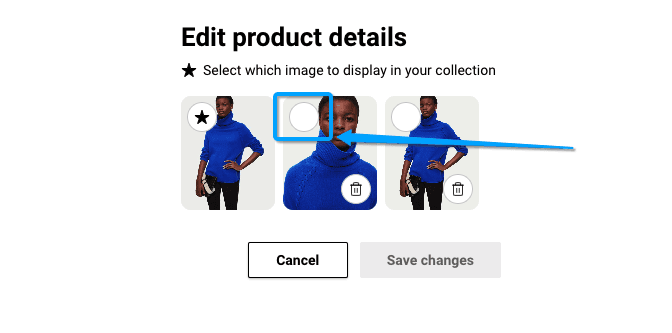
3. Star the image you would like to display in the collection and save changes
If Moonsift has only saved one image of the product or has not saved the image you wanted, go back to the retailer and try saving the item manually from your toolbar. Learn more on how to how to save items manually.
Can’t find the question you’re looking for? Send us an email at hello@moonsift.com