
FAQ / Saving Items / How to save items to Moonsift on iOS
How to save items to Moonsift on iOS
Moonsift's iOS app makes it easy to save items directly from any shopping app or website. Helping you stay organised by keeping track of everything you've got your eye on in one place.
To save items directly from any website or shopping app:
Get the iOS app here.
Add Moonsift to your share menu for easy saving from any store (see how)
When you see an item you want to save, share it to the Moonsift app
The video below shows how to save from any store (on Safari in this example)
Different browsers and apps have different 'share' buttons. Below are common examples.

Saving from Safari on iOS
Go to the product page you want to save
Tap the share icon (square with arrow pointing up) at the bottom of your browser
Select the Moonsift app and choose a collection to save to
Saving from Chrome on iOS
Go to the product page you want to save
Tap the share icon (square with arrow pointing up) in the top right of your browser
Select the Moonsift app and choose a collection to save to
Saving manually without the app
You can also add items by clicking the the 'Add item' button in your wishlist.
This is a more cumbersome option than saving via the share menu and can be harder for Moonsift to get the correct product info from the retailer this way.
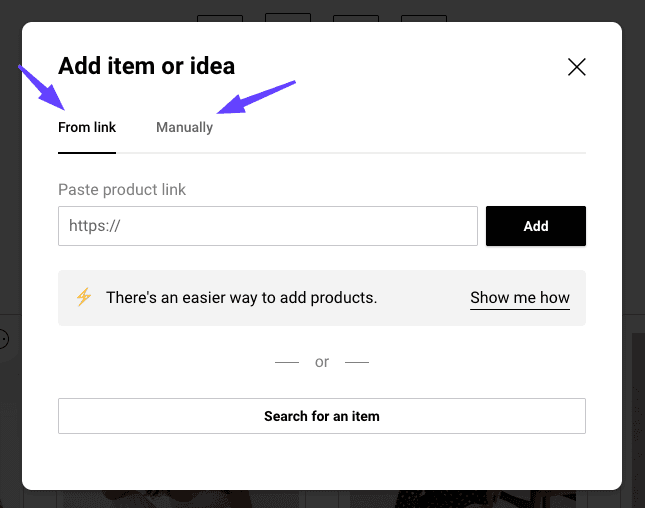
When you tap the 'Add items' button in a wishlist you will see two options:
Generate the item with a link: paste a link to the product you want to add to your wishlist and Moonsift will add the product details to your wishlist
Add item manually: use this if you want to manually add information about something you want on your wishlist.
Related articles
Can’t find the question you’re looking for? Send us an email at hello@moonsift.com